
See each page's search traffic and AI citations, before and after every change
The Pages tab puts a page's Search Console figures next to the tracked AI answers that cite it and compares the days before and after each change, so you can measure what an edit did in classic search and in the tracked answers.
Start at app.dejan.ai
The problem: after you change a page, you cannot see what the change did
Search Console shows clicks and position. It does not show whether AI answers cite the page. AI visibility tools show citations, but not next to the page's search traffic or the date of the edit. With the two in separate places, a before and after check on one page takes a spreadsheet, and changes made in the same weeks get mixed up.
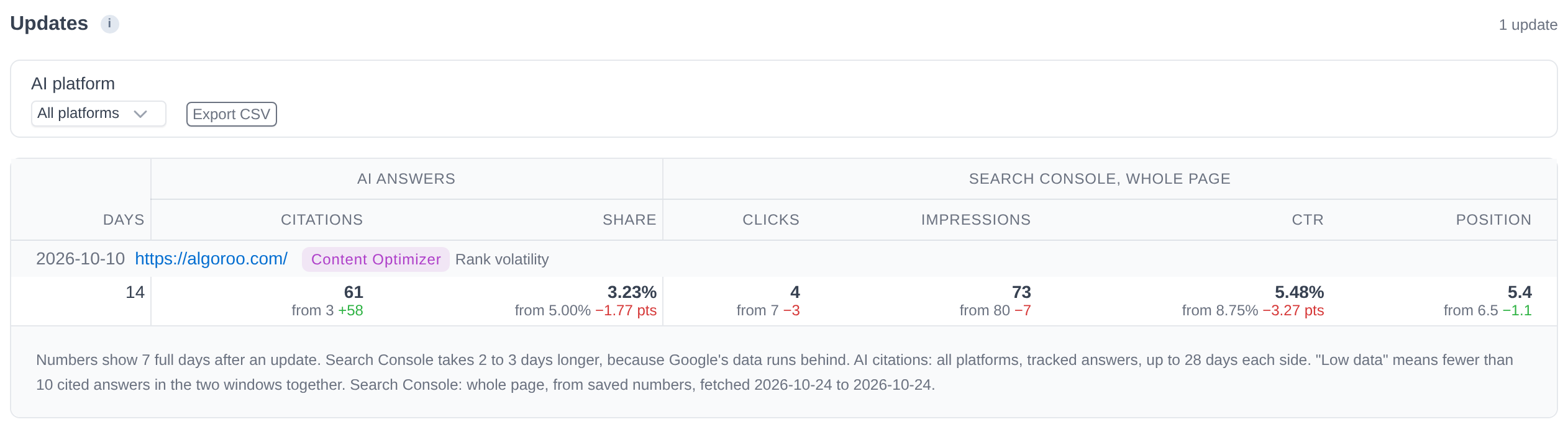
Here is an example from our public demo project. Algoroo tracks Google rank volatility. On 10 October 2026 the algoroo.com homepage was changed to apply a Content Optimizer result for the query "Rank volatility". The question after any change like this is whether more of the tracked answers cited the page, and what happened to its search traffic.
How the Pages tab solves it
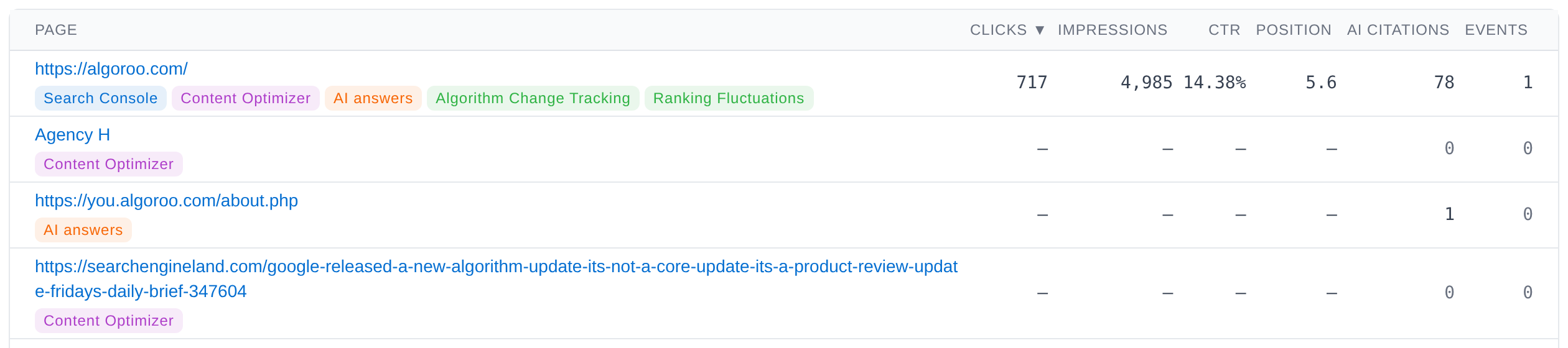
The Pages tab lists every page of the project that the app knows about, from five sources: Search Console, Content Optimizer target pages, logged page events, pages cited in tracked AI answers in the last 90 days, and pages linked to an entity. A page found in several sources shows as one row with a badge for each source.
In the demo page list the homepage had 717 clicks and 4,985 impressions in Search Console over 3 months, 78 AI citations in the last 90 days, and 1 event.
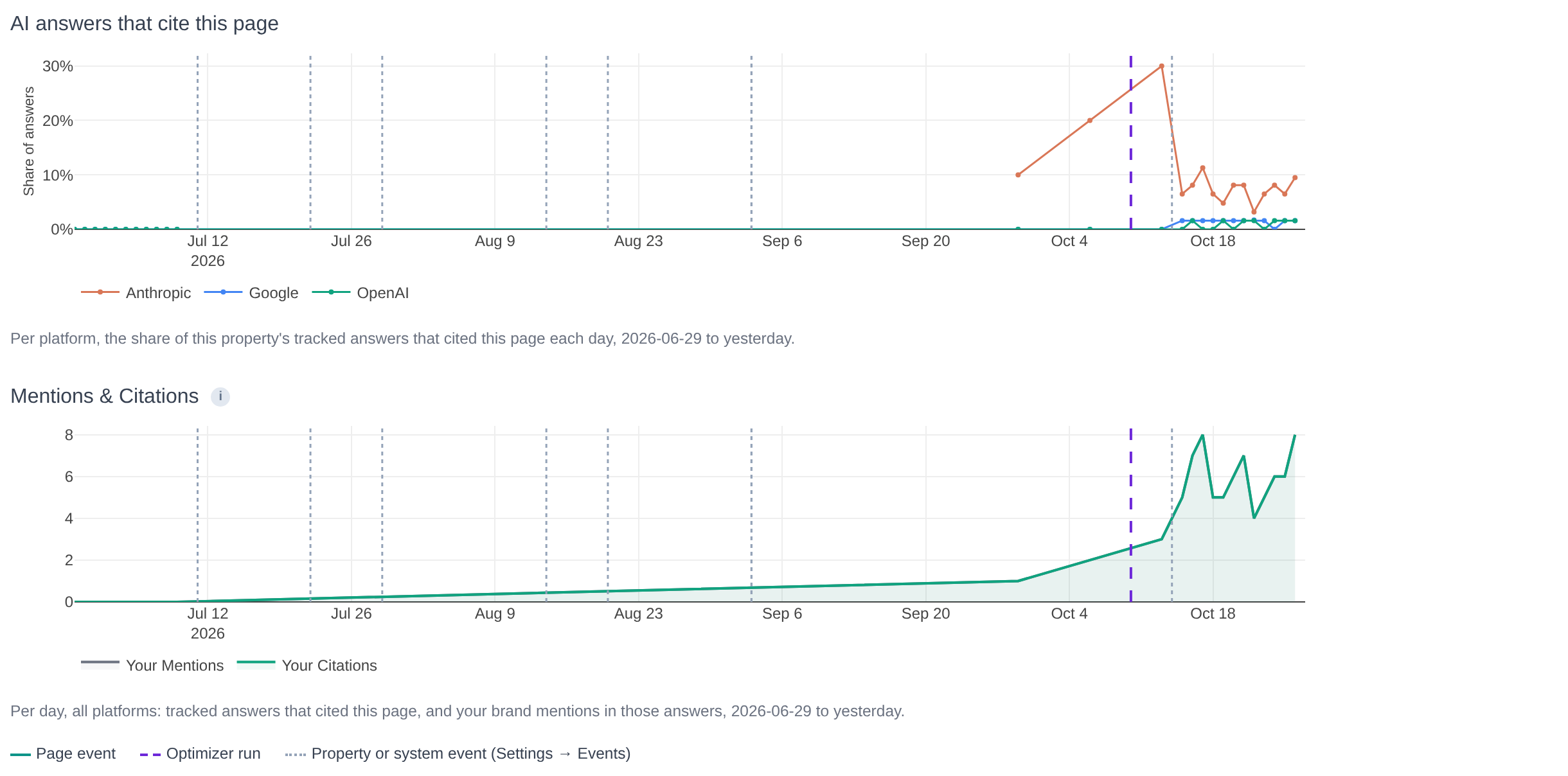
Click a URL to open its page view. The charts show, per AI platform, the share of tracked answers that cited the page each day, and the daily count of citing answers. Vertical lines mark changes: dashed for a Content Optimizer run, solid for a page event and dotted for a property or system event.
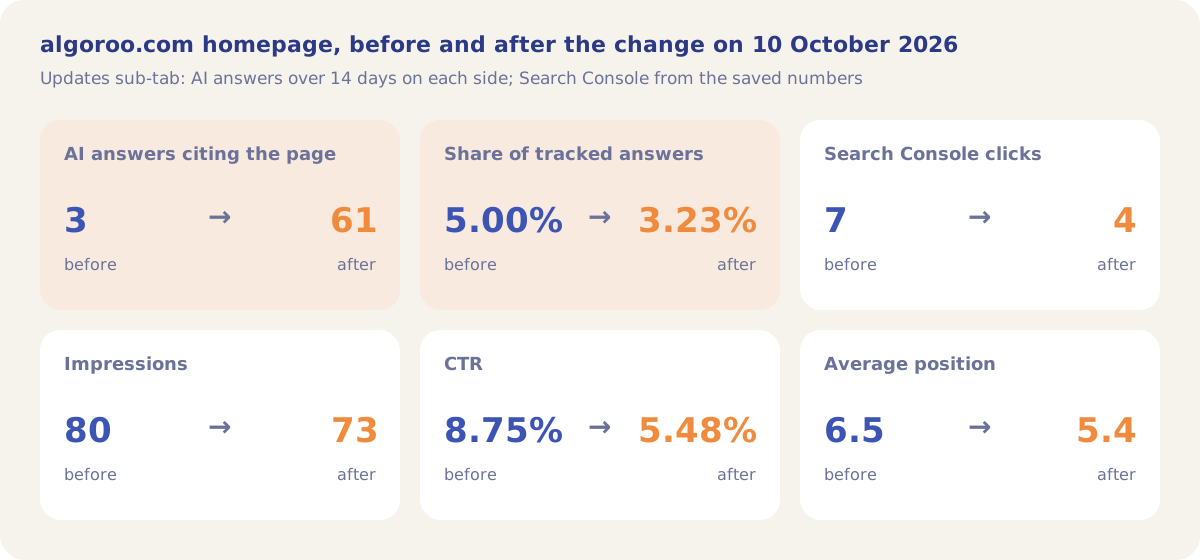
Before / after compares the same number of whole weeks on each side of the change, leaving out the day itself. For the homepage, the 14 days after 10 October had 61 tracked answers citing the page, against 3 in the 14 days before. The share went the other way, from 5.00% to 3.23%, because the project ran 2 tracking runs in the before window and 11 in the after window, so the number of tracked answers grew from 60 to 1,888. Search Console, over the 7 days on each side and for the United States, showed 4 clicks against 7 and an average position of 5.4 against 6.5.
How it works
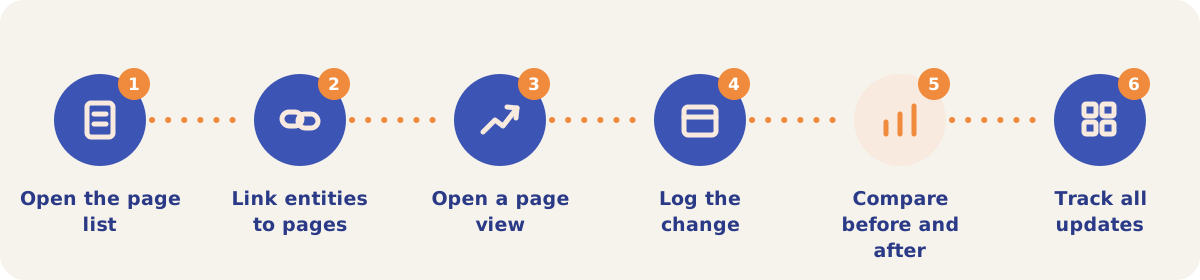
- Open the page list. Filter by Search (part of a URL), Source, Entity, Entity tag or Entity category, and click a column heading to sort. A Date Range picker appears when the linked Search Console site has more than one imported range.
- Link entities to pages. Owners and editors click +Add Entity under a URL, type entity names and click Save. The panel lists the page's top 10 Search Console queries as a guide. An entity links to one page only, and Move to this page moves an existing link.
- Open a page view. The cards show Clicks, Impressions, CTR, Average position, AI citations and Events. Below the charts, Queries lists the Search Console queries the page got impressions for, and Entities groups them by entity.
- Log the change. Click Log an optimization and enter the date it went live, the Search Console country, an optional target query and notes. A Content Optimizer run marked Implemented appears in the same list with an Open run link.
- Compare before and after. Click Before / after on an event. Windows are 7, 14, 21 or 28 days on each side. The numbers update as data arrives and are final at 28 days. Warnings list other events and other changes to the same page inside the window.
- Track all updates. The Updates sub-tab lists every change on the project, newest first, with tracked answers per platform and Search Console figures. Export CSV downloads one row per update.
Sub-tabs
| Sub-tab | Use it when |
|---|---|
| Pages | You want one page's traffic, AI citations, queries and events, or the list of all pages. |
| Updates | You want every change on the project in one table, filtered by AI platform. Refresh Search Console fetches new numbers for updates that are not final yet and does not spend credits. |
| Opportunities | You want pages with no entity yet, ranked by Query Potential score: impressions times average position, summed over the queries the page is the primary URL for. In the demo the list is empty. |
Strategies and use cases
- Read share and count together. In the demo, citing answers rose from 3 to 61 while the share fell from 5.00% to 3.23%, because the after window had more tracking runs. The Updates table shows both figures for every update.
- Log every change, including ones made outside the app. A logged page event shows on the page charts, in Settings → Events and as a marker on the Dashboard's Visibility Trend.
- Space out changes to the same page. When two changes fall inside one window, the warning says so, and the numbers show their effect together.
- Use Opportunities to grow the tracked set. Pages with many impressions at a weak position and no entity are listed first. Add an entity from the row, and the page leaves the list.
- Find queries with no entity. Tick No entity in a page view's Queries table to see the Search Console queries that no tracked entity covers yet.
How it connects to the rest of the app
Content Optimizer
Runs marked Implemented appear as updates with their own before and after figures.

Visibility Tracking
Supplies the tracked AI answers that cite each page.
Organic Search
Supplies the Search Console data, the Query to URL mapping and the Query Potential scores.
Dashboard
Marks each logged page event on the Visibility Trend chart.
Open the demo homepage's page view to see its charts, queries and the Before / after for the 10 October change.
Measure your next page change
Your first project includes a complimentary visibility baseline. No card required.