
Check whether an AI answer reports its sources accurately
Veracity runs a grounded Google search, reads every page the answer cites and compares the two, so you can see which facts from each source survived in the answer, which were lost and which were distorted.
Start at app.dejan.ai
The problem: a cited source does not always say what the answer says
A citation link suggests that the source backs the claim next to it. The answer is a short rewrite of several sources, and on the way facts are dropped, merged or changed. When the cited page is yours, the answer can state something about your product that your page does not say, with your page as the reference.
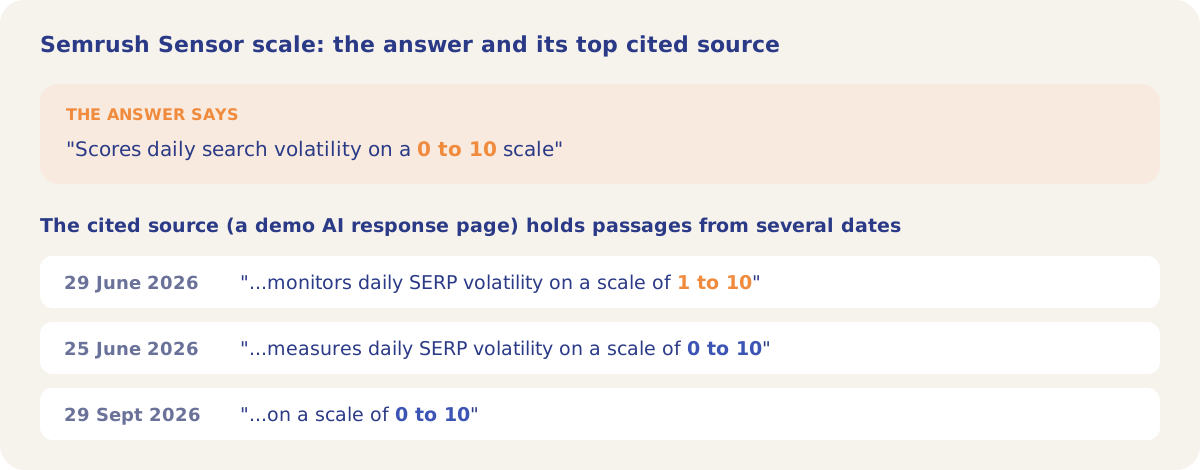
Here is an example from our public demo project. In the demo's Grounding Inspector run, the grounded answer from Google's model for "SERP flux measurement tool" says Semrush Sensor scores volatility "on a 0 to 10 scale". The answer's most-cited source, a demo AI answer page cited 6 times, holds passages from several dates. The 29 June 2026 passage says "1 to 10"; the 25 June and 29 September 2026 passages say "0 to 10".
How Veracity solves it
Veracity runs your query as a grounded Google search and keeps the answer with every cited URL and the passages of the answer attributed to each one. A Google model then reads each cited page and compares it with those passages. Each page gets three lists:
- Survived: facts from the page that the passages credited to it reflect accurately.
- Lost: facts on the page, relevant to the query, that the passages credited to it left out.
- Distortions: claims in the answer that alter, misstate or take out of context what the page says.
The demo project has no saved Veracity run, so the diagrams on this page show the scoring method and the example above.
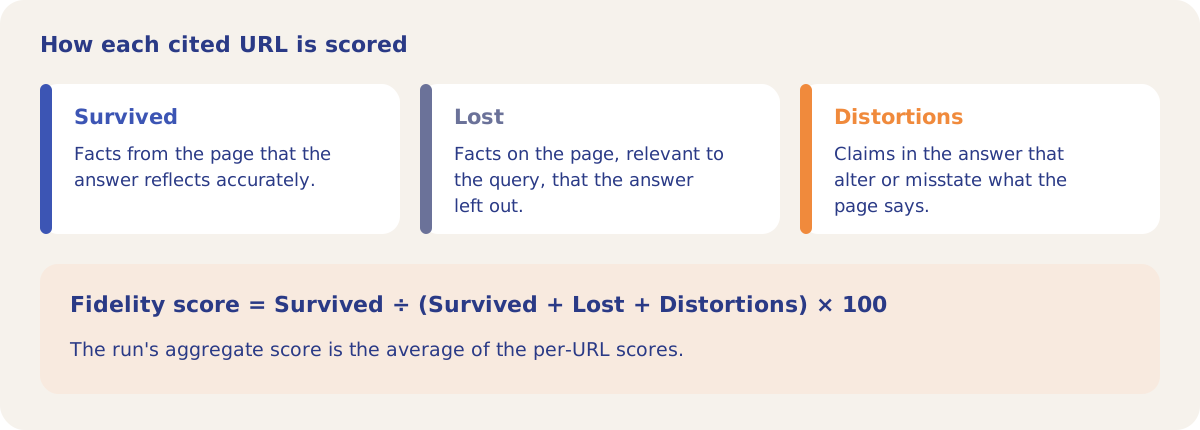
The score is the share of a page's listed facts and distortions that survived. A page with nothing listed also shows 100, so check its lists. A page can score low because the answer used little of it, because the answer changed it, or both. The lists under each URL show which.
How it works
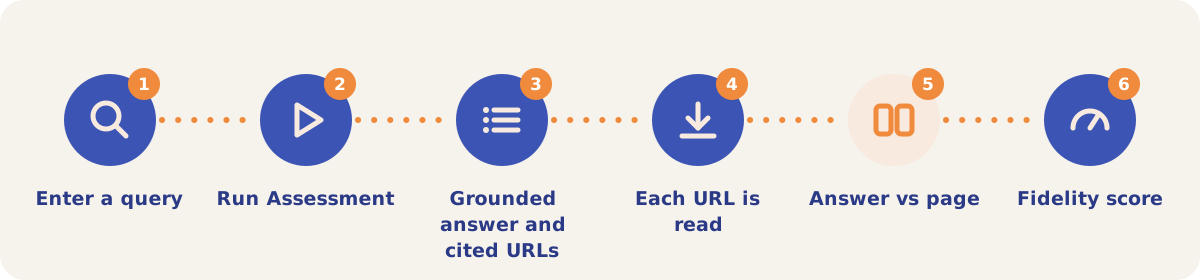
- Enter a query. Open Veracity from the Tools menu, click New Assessment and type the query or prompt.
- Click Run Assessment. The model list holds Google models, because the check runs on Google grounded search.
- The grounded answer is collected. The app keeps the answer, every cited URL and the answer passages attributed to each URL. A progress bar tracks the run.
- Each cited page is read. The model reads the page at each URL.
- The answer is compared with each page. Every URL gets its Survived, Lost and Distortions lists.
- Read the scores. The Fidelity Score card shows the run's average. Below it are the cards for each URL, the full Grounded Response and the API Response Metadata. Past assessments are listed with their score out of 100, with View and Del.
On a pay-as-you-go project each assessment is billed from the credit balance under Veracity.
Strategies and use cases
- Check the answers that cite your pages. Run the queries where your site is cited. The Distortions list for your URL shows the claims about you that your page does not support.
- Find what the answer leaves out. The Lost list shows facts on your page that were relevant to the query and did not make it into the passages credited to your page. Those facts are candidates to move higher on the page or state more plainly.
- Look for conflicting versions of a fact. As in the demo example, a source that states a fact two ways gives the answer two versions to choose from. Keep figures consistent across your pages.
- Compare sources on the same query. Per-URL scores show which cited pages the answer follows closely and which it uses loosely.
- Re-run after you edit a page. Each assessment is kept, so the Fidelity Score for the same query can be compared before and after.
How it connects to the rest of the app

Grounding Inspector
Shows every source an answer received and the passages each one backs.

Citation Mining
Runs the prompts you choose to test and shows which of your pages the tracked answers cite.

Page Grounding
Shows which lines of your page Google matches for a query.

Content Optimizer
Tests edits to a page until an AI ranker places it first.
Open Veracity in the demo project to see the assessment list and form. Running an assessment needs your own project.
Check your first AI answer
Your first project includes a complimentary visibility baseline. Veracity uses credits.