
Give your team and your clients access to the same AI visibility project
Sharing adds people to a project by email as an Editor or a Viewer, so everyone works from one set of runs and results instead of rebuilding the project in separate accounts.
Start at app.dejan.ai
The problem: separate copies of a project drift apart and cost twice
AI visibility work involves several people: an analyst who runs the probes, a strategist who reads them, a content team that applies the edits and a client who wants to see progress. If each of them sets up their own project, the entities, brands and queries drift apart, the same probes run more than once, and nobody can be sure which numbers are current. Screenshots and spreadsheets sent by email are out of date the next day.
Our public demo project shows what a shared project holds. The Algoroo demo project had 63 entities, 146 runs, 399 mentions of Algoroo and 99 citations of algoroo.com on 28 October 2026, and all of it is one dataset. Every signed-out visitor sees that dataset with the Viewer role, which is why the project shows a read-only banner.

How Sharing solves it
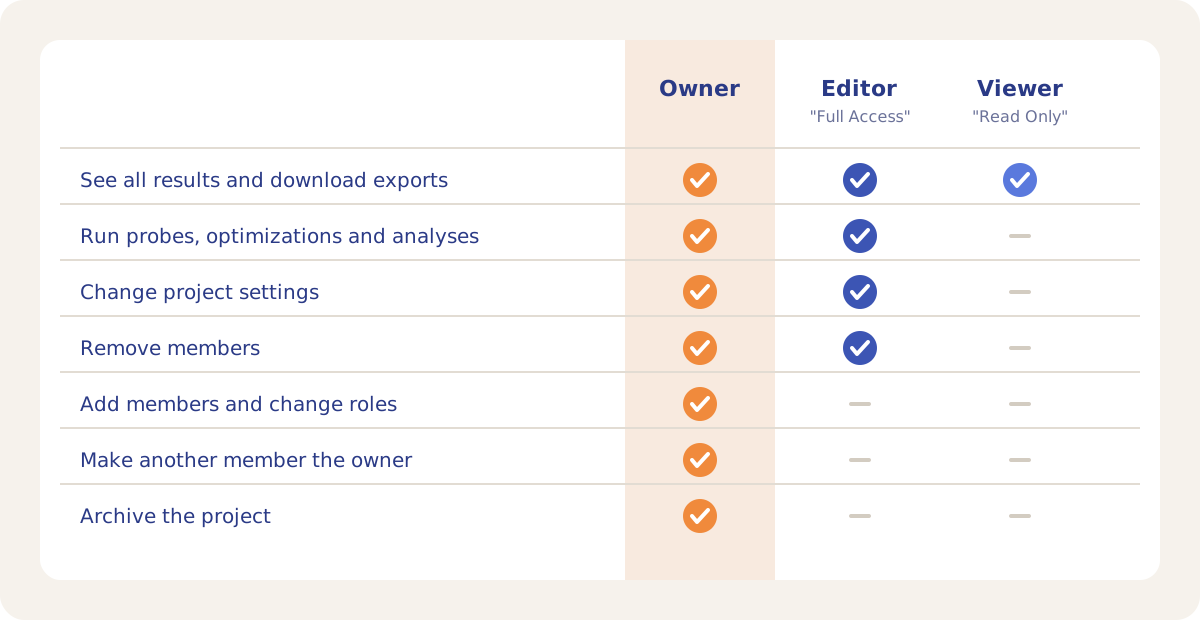
A DEJAN App project has one owner and any number of members. Each member is added by email and gets one of three roles. Everyone with access sees the same data, except that Viewers do not see costs: entities, brands, queries, categories, tags and locations, every probe run, Citation Mining data, Content Optimizer runs, analyses, visibility tracking snapshots, Search Console data and exports. A run started by one member is visible to all members when it finishes.
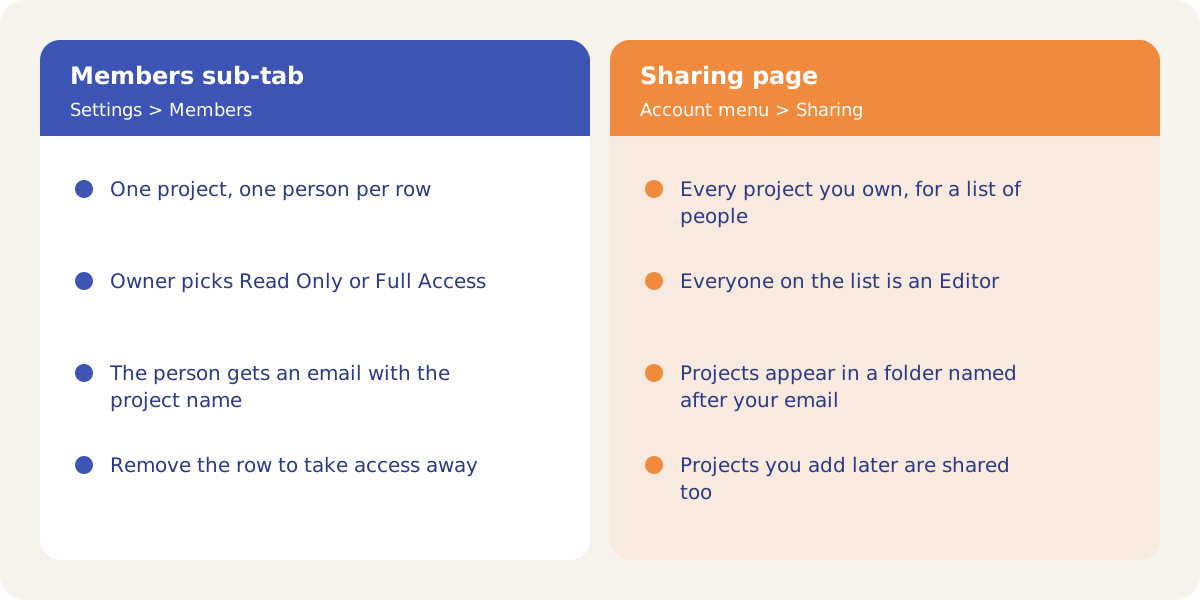
There are two ways to share. The Members sub-tab shares one project with one person at a chosen role. The Sharing page in the account menu shares every project you own with a list of people at once, at Editor level. A share from the Sharing page also covers projects you create later.
Any Google account can be invited, and the person's plan is separate from their project membership. A new member gets an email from the app that names the project and the access level, with the address to sign in with. A reply to that email goes to the person who shared the project.
How it works
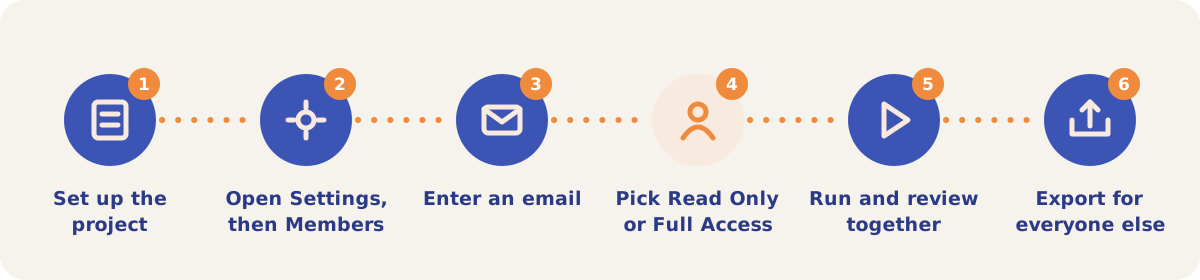
- Set up the project. Add the brands, entities and queries first, so members start from a finished setup. The person who creates a project is its first owner.
- Open Settings, then Members. The Members sub-tab lists everyone with access, with their name, email and role. People who have not signed in yet show an Invited badge.
- Enter an email. Type the person's Google account address.
- Pick Read Only or Full Access, then click Add Member. Read Only makes the person a Viewer; Full Access makes them an Editor. The owner can change a member's role later from the same table.
- Run and review together. Probes, optimizations and analyses started by any Editor appear for every member.
- Export for everyone else. For people who will not sign in, download a report or CSV files from the Tools menu.
Managing members
| Action | Who can do it | What happens |
|---|---|---|
| Add Member | Owner | The person gets access at the chosen role and an email. |
| Change role | Owner | Switches a member between viewer and editor. |
| Remove | Owner, or an Editor added on the Members sub-tab | The member loses access. The owner row cannot be removed. |
| Make Owner | Owner | Ownership moves to the member, who takes over the project's billing. The previous owner becomes an Editor. |
| Leave | Editors. A Viewer asks the owner to remove them. | You lose access to the project at once. |
On the Sharing page, enter one email per line under Share with and click Save. Removing a line removes that person's access to all of your projects. After you save, a Can create projects box appears next to each person. A ticked person can add new projects under your account; those projects belong to you, are charged to your billing and are shared with everyone on your list.
Strategies and use cases
- Give clients Read Only. A client sees every result and export, the same way visitors see the demo project, and cannot start runs that spend credits.
- Use the Sharing page for your own team. One list gives colleagues Editor access to every project you own, and new projects appear for them in a folder named after your email.
- Use the Members sub-tab for one-off access. A freelancer or a client contact gets one project, and removing their row ends it.
- Hand a project over with Make Owner. When a client takes a project in-house, transfer ownership. The confirmation shows the new owner's plan and credit balance, because their account pays for the project from then on.
- Agree on naming before several people add data. Shared entities, queries, tags and locations stay comparable across runs only if everyone uses the same names.
- Write the Objectives once. Every member's Gap Analysis and Content Optimizer runs read the same Objectives in Settings.
How it connects to the rest of the app

Reports
Packs the project into one file for people who will not sign in.

Dashboard
The first screen every member sees when they open the project.

Content Optimizer
Editors start runs; every member can read the results and briefs.

Gap Analysis
Past analyses stay on the Analysis tab for the whole team.

MCP Self-Service
Gives AI assistants read access to the same projects you can see.
Open the demo project to see a project the way a Viewer sees it.
Set up a project for your team
Your first project includes a complimentary visibility baseline. No card required.